5 Time-Consuming Tasks Small Businesses Can Automate with AI Today

In the lifecycle of every small-to-medium business, scaling has historically always been synonymous with ballooning payroll and burning the midnight oil. But, this usually hits a point of diminishing returns.
That is not the case anymore.
Today’s growth is no longer a matter of adding more human hours to improve a process, it’s about applying technical leverage. We have entered an era where AI and workflow automation serve as the ultimate force multiplier, effectively enabling a lean team of five to produce the output, precision, and revenue impact of a twenty-person department.
The problem is that most small to medium business (SMB) owners feel completely priced out of the AI revolution. They see the headlines about Fortune 500 companies implementing large-scale AI solutions and assume AI is too pricey or too complicated. But at HigherVisibility, our guiding principle is that success is built on outcomes, not just flashy tactics.
For a small business, the most valuable outcome isn’t a custom-coded neural network, it’s the reclamation of 15 hours of administrative labor every week. That savings can make a huge difference in overall productivity and profitability. This guide is your blueprint for clearing the hurdle of nonstop busywork that is currently holding your growth hostage.
Key Takeaways for SMB Owners
- Automation is the Great Equalizer: SMBs can now use the same level of operational efficiency as Fortune 500 companies by leveraging off-the-shelf AI tools.
- Focus on “High-Intent” Work: By automating routine tasks, your team can pivot to high-value activities like customer relationship building and strategic planning.
- Reduce Customer Acquisition Costs (CAC): Efficiency in the back office directly translates to lower overhead, allowing you to be more aggressive in your marketing and SEO efforts.
- The “Human-in-the-Loop” Model: Automation shouldn’t replace your staff; it should act as an assistant that prepares 90% of the work for human approval.
- Immediate ROI: Unlike traditional brand-building which takes months, workflow automation can show measurable results within a single billing cycle.
1. Prioritizing Emails and Automatic Response Drafts
Studies consistently show that the average professional spends nearly 28% of their day in the inbox. For an SMB owner, that’s not always meaningful or impactful work. Sometimes, it’s a distraction from your most valuable asset – time. The modern inbox is a flood of low-priority inquiries, internal chatter, and high-value leads all fighting for the same visual space.
AI-driven triage doesn’t just help you write faster; it helps you think faster by organizing your cognitive load before you even open a message.
The Step-by-Step Implementation Guide
For Google Workspace Users (Gemini)

- Activate the Sidebar: Open Gmail and look for the Gemini “star” icon on the right-hand side. This is your command center for thread analysis.
- Use the “Summarize” Protocol: Instead of scrolling through 40 replies on a client project, click “Summarize.” Gemini will extract the core conflict, the current status, and the “Last Person to Act.”.
- Drafting with Context: Click “Reply” and then the “Help me write” icon. Don’t just ask for a reply; give it a “Context Prompt.”
- Bad Prompt: “Reply to this.”
- Good Prompt: “Draft a polite reply to Sarah. Mention that we received the files, we’ll have a draft by Tuesday, and ask if she has the updated branding guidelines.”.
- Tone Calibration: Use the “Refine” menu to toggle between “Formal,” “Elaborate,” and “Shorten” to ensure you don’t sound like a robot.
For Microsoft 365 Users (Copilot in Outlook)
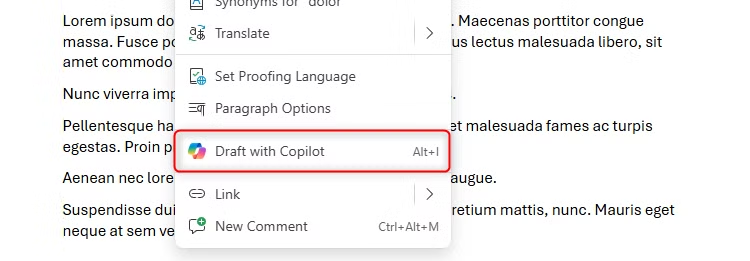
- Draft with Copilot: When you start a new email, the “Draft with Copilot” box will appear.
- Cross-Reference Data: One of Copilot’s greatest strengths is its ability to see your other files. Try this prompt: “Draft a weekly update to the client based on the ‘Project Alpha’ Word doc and the budget numbers in the ‘Q1 Spend’ Excel file.”.
- Summarize on Mobile: If you’re in the field, use the Outlook mobile app. Copilot can summarize long threads into a few bullet points so you can make decisions while on-site.
Troubleshooting Common Issues
- The “Hallucination” Check: AI can occasionally get dates or numbers wrong if they are buried in messy formatting. Always verify the “Core Data” before hitting send.
- The Over-Formalization Trap: AI tends to be overly polite and utilizes a very formal usage of grammar. If your brand voice is casual, tell the AI: “Write this in a friendly, concise tone for someone I’ve worked with for three years in 12th grade English.”.
Bonus Tip: Mailmeteor – The “Forever Free” Alternative
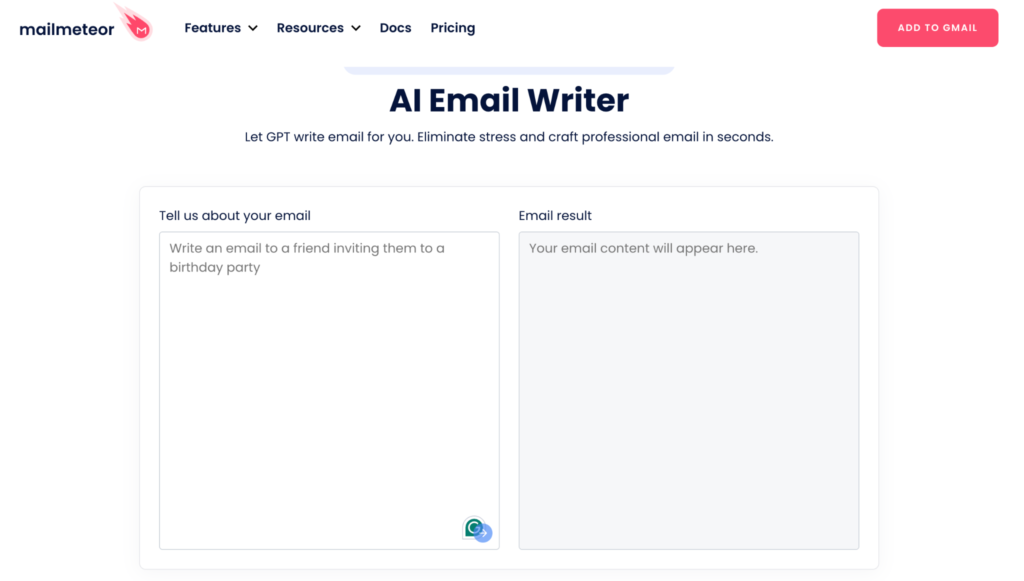
If you aren’t on a paid AI plan, use Mailmeteor’s AI Writer.
- How-to: Install the Mailmeteor extension for Gmail. It offers a free tier that allows you to generate drafts using the “Custom Prompt” feature. It is particularly effective for “Cold Outreach” where you need to personalize 50 emails quickly without writing each one from scratch.
2. Create One Unified List of Post-Meeting Action Items and Accountability Checks
Meetings are the black hole of SMB productivity. You spend an hour discussing strategy, commit to being on the same page, yet somehow everyone leaves with their own notes and their own version of what they heard (which is usually a different interpretation of the next steps), and the transcript sits in a folder until the next meeting.
AI allows you to treat every meeting as a Structured Data Event. It turns spoken words into a verified record of decisions and a checklist of accountability.
The Step-by-Step Implementation Guide
Tool Selection: Otter.ai or Fireflies.ai
- Connect Your Calendar: During onboarding, grant the tool access to your Google or Outlook calendar. This is the “set it and forget it” step.
- Define the “Join” Logic: In settings, choose whether the AI should join every meeting or only those you own. For SMB owners, I recommend “All meetings with a link” to ensure you capture vendor calls and client check-ins.
- The “Live-Highlight” Technique: During the call, have the app open. If someone says something crucial, click the “Highlight” button. This tells the AI to prioritize this specific section in the summary.
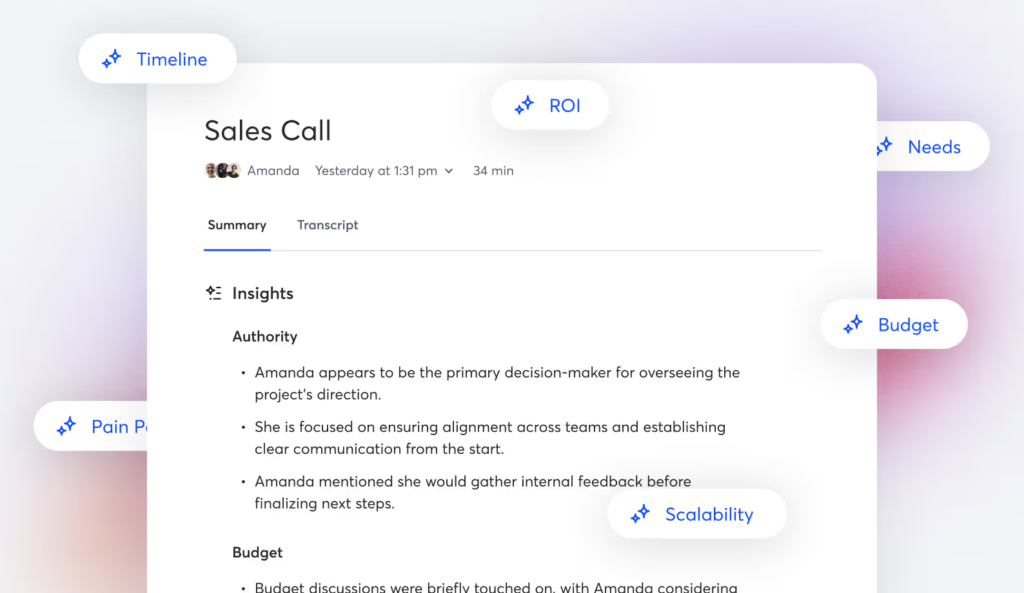
- Post-Call Extraction: Once the call ends, don’t just read the summary. Use the “Ask AI” chat feature within the app:
- Prompt: “Based on this call, create a bulleted list of tasks for the Marketing team and a separate list for the Sales team. Include any dates mentioned.”.
The “Action Item” Distribution Workflow
Capturing the notes is only half the battle. If those insights stay buried inside your transcription app, the efficiency gain is lost. While many agencies suggest exporting these tasks to complex project management software like Asana or Trello, we’ve found that for lean SMB teams, this often adds another layer of “tool fatigue.”
Instead, push those action items directly into the place your team already lives: their email inbox. By using Zapier as the “glue” between your AI notetaker and your mail server, you ensure that decisions made in a 10:00 AM meeting are sitting in the relevant team members’ inboxes by 11:05 AM.
Push to Execution via Zapier
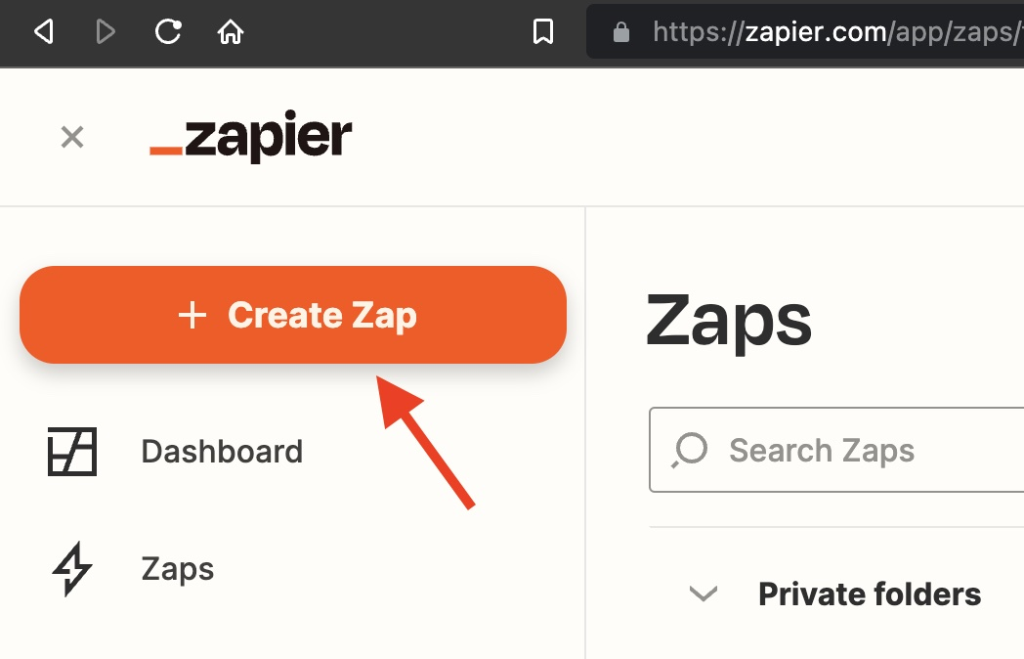
Zapier allows you to create a “Zap,” which is a simple automated workflow that basically connects two softwares together and lets them communicate. In this case, your Zap triggers the moment your AI assistant finishes processing a call. This removes the manual burden of copying, pasting, and emailing recaps yourself.
Instructions for Google Workspace (Gmail):
- Set the Trigger: In Zapier, select your transcription tool (such as Fireflies.ai or Otter.ai) and set the trigger event to “New Meeting Summary” or “Meeting Processed”.
- Authenticate Your Account: Grant Zapier permission to access your transcription app and your Gmail account.
- Define the Action: Choose Gmail as the app and “Send Email” as the action.
- Map the Data: In the “Body” field of the email setup, use the “Insert Data” button to select the “Meeting Title,” “Summary,” and “Action Items” generated by the AI.
- Test the Zap: Run a test to ensure the email arrives formatted correctly in your “Sent” folder.
Instructions for Microsoft 365 (Outlook):
- Set the Trigger: Choose your transcription app and set the trigger to “New Summary Available”.
- Define the Action: Select Microsoft Office 365 Outlook and the action “Send Email (V2)“.
- Customize the Subject Line: Use a dynamic subject line like: ACTION REQUIRED: [Meeting Title] – [Date] to ensure the email stands out from routine correspondence.
- Distribute to the Team: In the “To” field, you can either hardcode your team’s distribution list or use the AI-extracted “Participant Emails” data tag to send it automatically to everyone who was on the call.
- Turn on the Zap: Once verified, toggle the Zap to “On” to automate every future meeting recap.
Bonus Tip: Fathom – The “Unlimited” Free Alternative
If you are operating on a tight budget, use Fathom. Fathom is a game-changer for SMBs because it provides unlimited recording, transcription, and summaries for free, with none of the “minute caps” found in the free tiers of Otter or Fireflies.
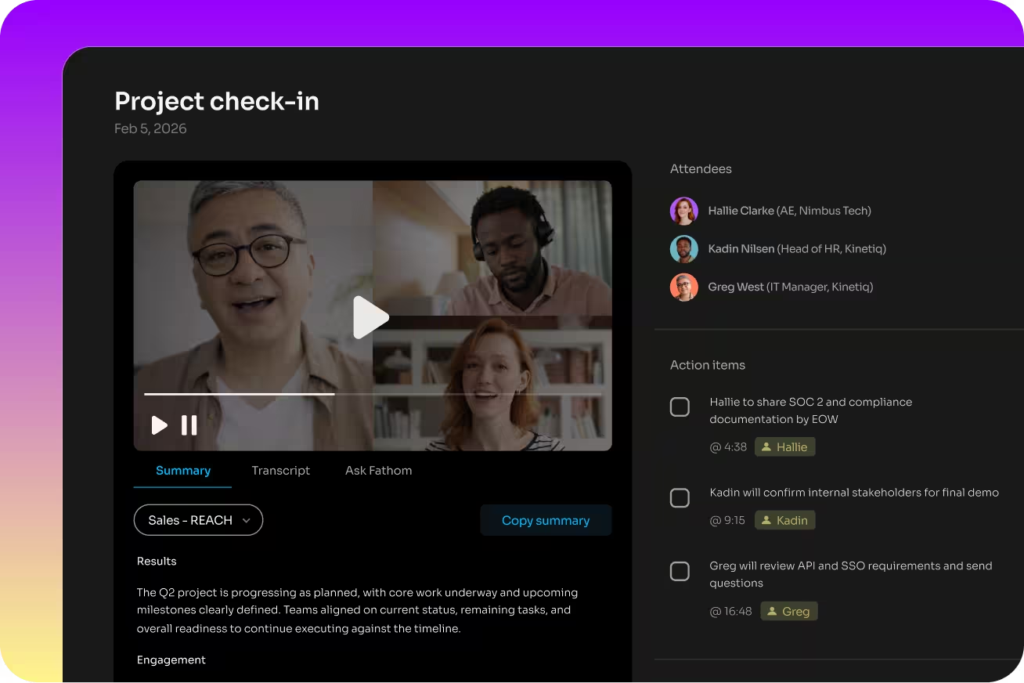
- How-to: Download the Fathom desktop app; it will automatically launch and offer to record whenever you join a Zoom, Google Meet, or Microsoft Teams call.
- Instant Recap: The “Instant Recap” feature generates a high-quality summary in seconds after the call ends, which can be shared via a single link.
- Searchable Archive: All meetings are stored in a searchable cloud archive, allowing you to instantly locate specific client promises or project details by keyword.
3. Manual Data Entry from PDFs or Printed Material
Manual data entry is the silent killer of SMB morale. Copying data from a PDF invoice or any physical copy into an Excel sheet is a high-risk task that is susceptible to burnout and errors. AI-powered Optical Character Recognition (OCR) has advanced to the point where it can read even messy, non-standardized documents with higher accuracy than a tired employee.
The Step-by-Step Implementation Guide
For Routine Invoicing (QuickBooks/Xero)
- The Mobile Scan: Use the QuickBooks mobile app. When you get a physical receipt or a PDF invoice, snap a photo or “Share” the file to the app.
- The AI Extraction: QuickBooks’ built-in AI will identify the “Vendor,” “Category,” and “Total.”.
- The Review Phase: Don’t just click “Save.” Quickly verify the “Tax Amount”. AI sometimes struggles with complex tax breakdowns in specific regions.
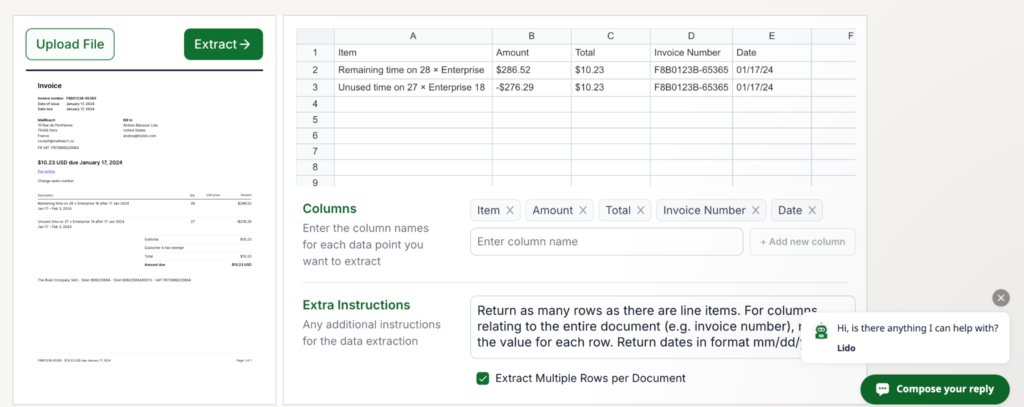
For Custom Data (Lido/Nanonets)
- Create an “Inbound” Folder: Set up a Google Drive folder where you drop all intake forms or vendor PDFs.
- Connect Lido: Sign up for Lido.app and select your Google Drive as the source.
- “Train” the Extraction: Show the AI one example of your form. Click on the fields you want to capture (e.g., Customer Phone Number).
- The Auto-Populate: Set the frequency to “Daily.” Every evening, Lido will scan that folder and add any new data points as rows in your master Google Sheet.
Bonus Tip: Google Lens + ChatGPT – The “High Volume” Free Alternative
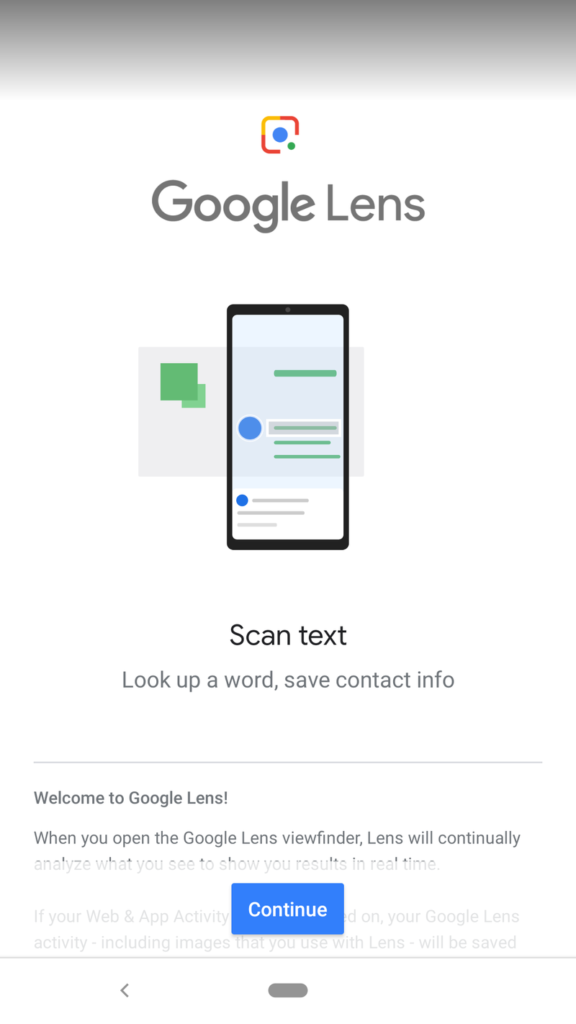
How-to: If you have a one-off document, open it in Google Lens on your phone and select “Copy Text.”. Paste that raw text into ChatGPT with the prompt: “Format this messy text into a clean table with columns for ‘Date’, ‘Item’, and ‘Price’.” This is a 100% free way to handle manual entry for small batches.
4. Installing a Website Chatbot for Customer Service FAQs and Lead Collection
In the high-stakes environment of local business, every phone call is a potential lead, but not every call is a high-value use of your time. If your staff is constantly interrupted to answer basic questions about your service area, hours, or pricing, you are losing more than just a few minutes. Think of it as a “context-switching” tax. Research suggests that it can take up to 20 minutes to regain full focus after an interruption, meaning a single question about your Saturday hours can effectively derail a complex task like project bidding or strategic planning.
Small business employees are frequently forced to act as human encyclopedias, repeating the same five responses dozens of times a week. An AI-powered assistant doesn’t replace the human touch. It acts as a high-speed filter. It communicates basic logistical information instantly, ensuring your team is only pulled into conversations with qualified, high-intent leads who are ready to convert.
How the “Knowledge Base” Model Works
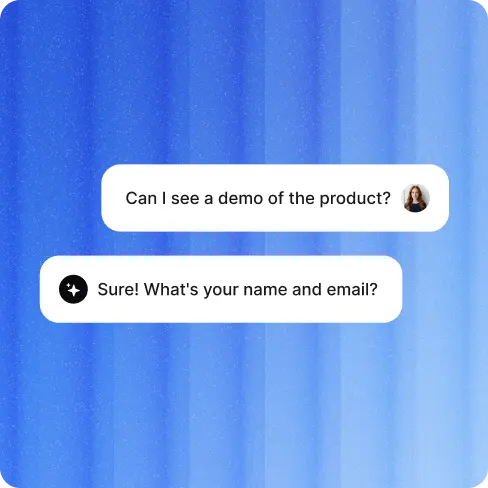
Unlike the rigid chatbots of the past that relied on “keyword matching” (and often failed if a user misspelled a word), modern AI assistants use semantic understanding. This means the bot understands the intent behind a question. Whether a customer asks “Where do you work?”, “What’s your service area?”, or “Do you come to Memphis?”, the AI recognizes these as the same inquiry and provides the correct answer based on the data you provided.
The Step-by-Step Implementation Guide
To get started, we recommend using a tool like Chatbase.co or YourGPT, which are designed specifically for SMBs to build “custom brains” without writing code.
- Step 1: Audit and Export Your Content: Gather your PDF service guides, price lists, internal FAQ documents, and your website URL.
- Step 2: Training the “Brain”: Upload these files directly to Chatbase. The AI will crawl your website and “read” your documents, becoming an instant expert on your specific business operations.
- Step 3: Configure Safety and “Strictness”: In the settings, set the AI to “Strict Mode”. This prevents the bot from “hallucinating” or answering questions about topics not found in your data. Give it a specific fallback instruction: “If a customer asks a question you cannot answer, say: ‘I’m not sure about that, but I can connect you with a specialist. Please leave your email below.'”.
- Step 4: Integrate the Scheduling Action: Most SMBs lose leads in the gap between “getting an answer” and “booking a call.”. Add your Calendly or Google Calendar link to the bot’s interface. Train the AI to recognize Transactional Intent: If a user mentions a “quote,” “estimate,” or “appointment,” the bot should immediately provide the booking link.
How to Install on a WordPress Site
Installing an AI chatbot on WordPress is a straightforward process that usually takes less than 10 minutes:
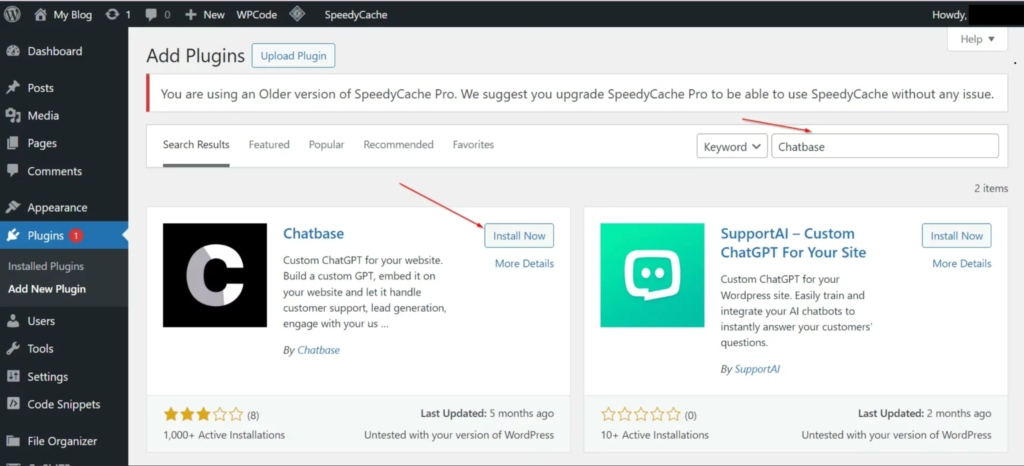
- Option A (The Plugin Method): Many AI tools like Chatbase offer a dedicated WordPress plugin. Simply install the plugin, navigate to the settings, and paste your “API Key” found in your chatbot dashboard.
- Option B (The Script Method): If you prefer to keep your site lean, use a “Header and Footer” plugin. Copy the “Embed Code” snippet from your chatbot’s “Connect” tab. Paste this code into the Footer section of your WordPress site settings. This ensures the chat widget appears on every page without slowing down your initial page load.
The SEO Connection: User Experience (UX) and Rankings
From an innovation perspective, a chatbot is more than just a service tool, it could be a ranking factor. Search engines like Google prioritize sites that offer an exceptional User Experience (UX).
- Reducing Bounce Rate: If a user finds an answer in 2 seconds via chat instead of hunting through your menu, they are less likely to leave your site in frustration.
- Increasing Dwell Time: Engaging with a helpful assistant keeps users on your page longer, sending a signal to Google that your content is valuable and relevant.
- Optimizing for Voice Search: As users shift toward more conversational, question-based queries (e.g., “Siri, find a plumber near me that is open now”), having a chatbot trained on conversational FAQs helps your site align with those natural language patterns.
SEO is a critically important foundational channel in the digital marketing world, so it is important to ensure your site is optimized to be compatible with modern search engine algorithms.
Bonus Tip: The “Hybrid” Free Alternative
If you aren’t ready for a paid subscription, I recommend Tidio’s Lyro AI. Tidio offers a robust free tier that is specifically designed for small teams.
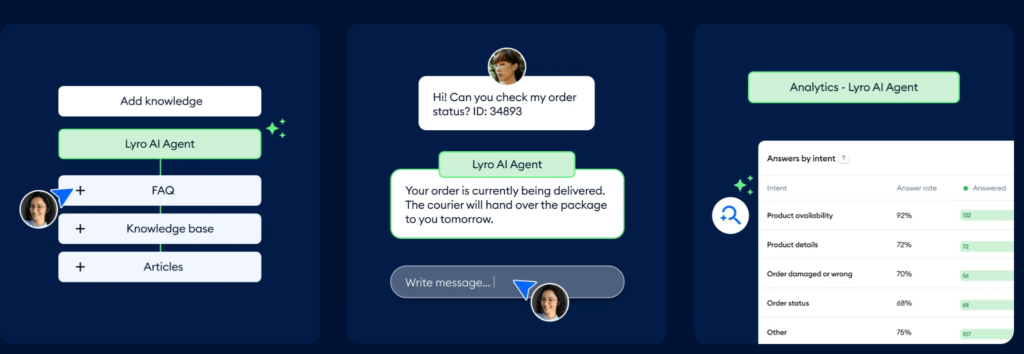
- How-to: Create a Tidio account and navigate to the “Lyro AI Agent” section. Use the “Playground” to test its answers against your pricing and policies before going live.
- Automated “Flows”: You can set up “Flows” that handle the routine logistics but trigger a “Live Chat” notification on your smartphone the moment a high-value keyword like “Pricing,” “Emergency,” or “Consultation” is mentioned. This ensures you never miss a critical lead while the bot handles the repetitive “encyclopedic” work.
5. Creative Internal Reporting To Extract Strategic Insights
Internal reporting is the most common task that busy SMBs sometimes classify as “important but not urgent,” which means reporting can sometimes get done poorly or not at all. Paradoxically, proper reporting can allow SMB owners to extract insights that could lead to game-changing improvements to the business. AI allows you to consistently create insightful reports (regardless of data type or source) and will help turn those numbers into a strategic narrative.
The Step-by-Step Implementation Guide
The “Sales Insight Generation” Prompt Example
- The Export: Once a week, download your sales data from your CRM and your traffic data from Google Search Console.
- The Upload: Upload these CSV files to ChatGPT (using the Data Analyst feature) or Claude 3.5.
- The Master Prompt:
“I am the owner of a local plumbing business. I am attaching our sales and web traffic data for the last 30 days. Analyze the correlation between our ‘Near Me’ search traffic and our actual booked jobs. Which service area is underperforming? Write a 3-bullet point ‘Action Plan’ for the coming week based on these insights.”.
Automating the Distribution
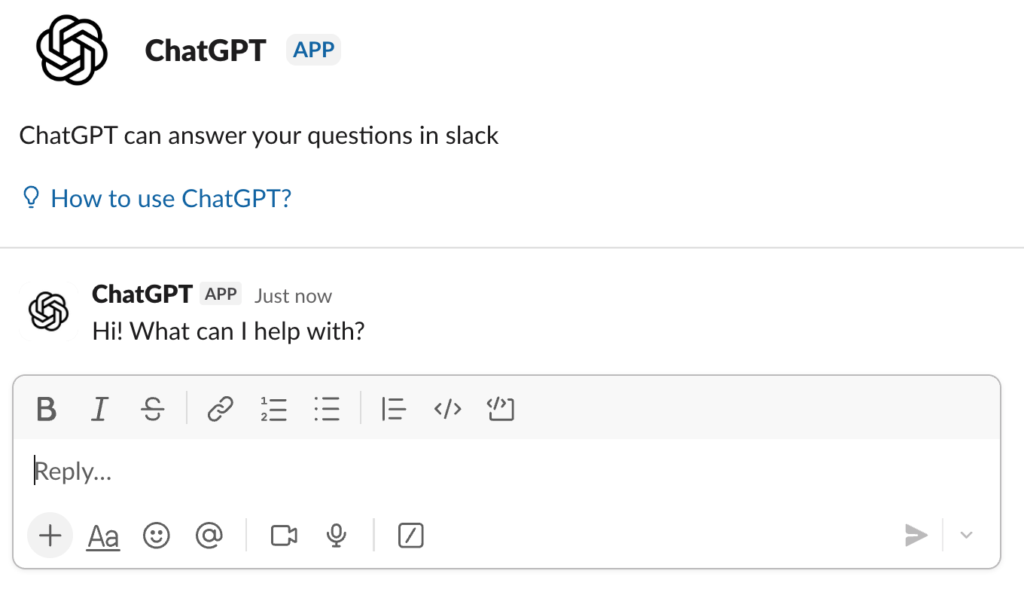
- The Slack Integration: Use the ChatGPT Slack app.
- The Workflow: Every Monday morning, paste your raw numbers into the Slack chat. The AI will respond with the summary, which you can then “Pin” for the whole team to see.
Bonus Tip: The “Live Dashboard” Free Alternative
Use Looker Studio.
- How-to: Looker Studio is Google’s free reporting tool. It connects directly to your Google Ads and Analytics. Use one of the “SMB Performance” templates. It creates a live, visual dashboard that updates in real-time. Share the link once, and you’ll never have to “generate” a report again—the data is always there.
There are countless iterations of use-cases for generating internal reporting. In the provided example, we showed how a local plumber can cross-check sales data with Google Analytics data to determine areas of improvement for the website. When it comes to generating internal reporting and generating insights, SMBs are only bound by their own imagination and creativity. AI simply allows for that creativity to flourish by allowing SMBs to analyze numbers and trends and make correlations from sources that otherwise would have been near impossible.
Choosing the Right Automation Path for Your Goals
The most common mistake SMB owners make is trying to automate everything at once. This leads to AI fatigue, technical glitches that waste more time than it solves, and a frustrated team. Instead, you must align your automation efforts with your specific growth goals.
Automation Selection Matrix
| If your goal is… | Prioritize this Automation | Key Benefit |
| Lowering Overheads | Manual Data Entry (Task 3) | Immediate reduction in labor hours |
| Increasing Sales | CS FAQs & Scheduling (Task 4) | Higher lead-to-appointment conversion |
| Scaling the Team | Meeting Notes & Action Items (Task 2) | Better accountability and faster project cycles |
| Strategic Clarity | Weekly Reporting (Task 5) | Data-driven decision making |
| Improving Morale | Email Triage (Task 1) | Reclaiming the “mental space” of your staff |
By 2030, the gap between businesses that use AI and those that don’t will no longer be a competitive edge, it will be a minimum survival requirement. Even today, many businesses have already implemented AI into their workforce to some degree. When you automate these five tasks, you aren’t simply saving time. You are setting your business up for success by freeing up your workforce for more important and impactful tasks that actually move the needle. After all, if an employee only gets 8 hours of work, you don’t want 1/8th of that time to be spent answering low-priority emails.
The transition to an automated workflow is a marathon, not a sprint. Start with one task this week. Master the prompt, verify the output, and then move to the next.

- 1. Prioritizing Emails and Automatic Response Drafts
- 2. Create One Unified List of Post-Meeting Action Items and Accountability Checks
- 3. Manual Data Entry from PDFs or Printed Material
- 4. Installing a Website Chatbot for Customer Service FAQs and Lead Collection
- 5. Creative Internal Reporting To Extract Strategic Insights
- Choosing the Right Automation Path for Your Goals

Enter your email to get strategic insights, a plan of action, and pricing options.
From Our Insite Blog
We believe that SEO requires an all-encompassing approach to ensure a sustainable future for your site and achieve your goal…. conversions.

I have been a client for several years now. I am very happy with the work and service that HigherVisibility has provided. They keep me updated on progress and produce results.